

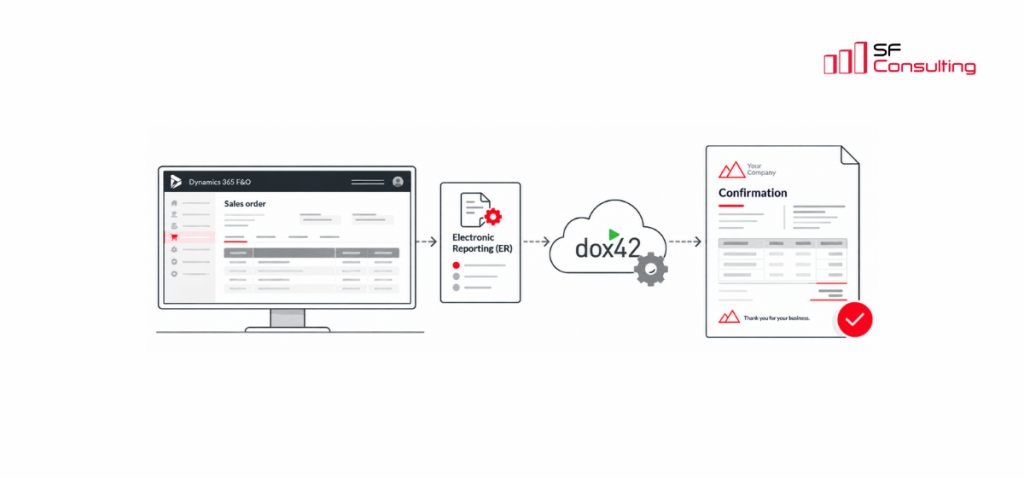
Getting Started with ER-Based dox42 Reports in Dynamics 365 Finance and Operations
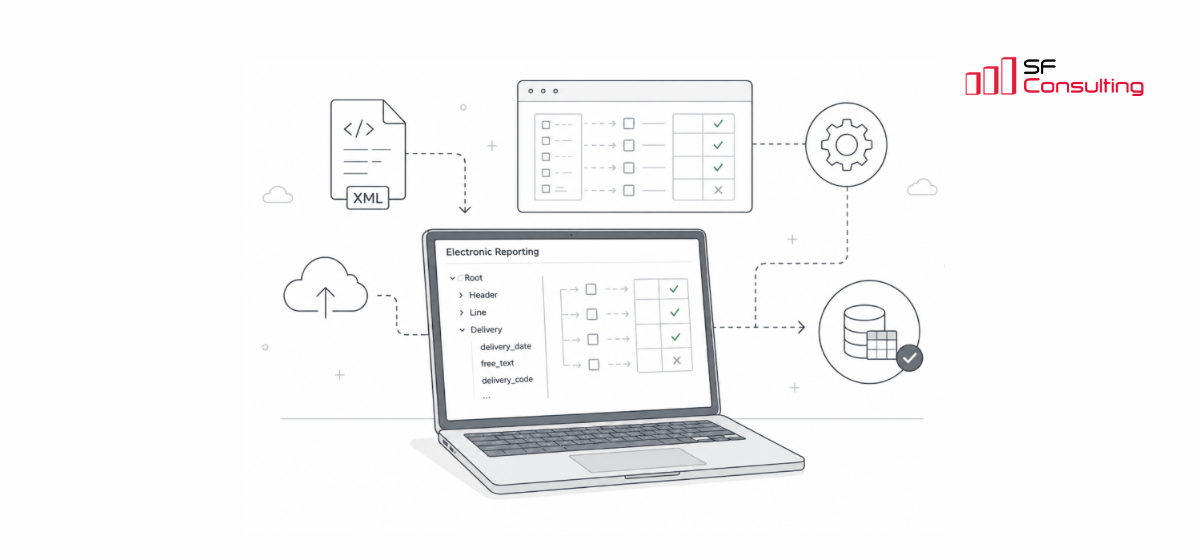
Using Electronic Reporting (ER) as the data layer for dox42 can be a flexible approach in Dynamics 365 F&O, especially when the required business logic and datasets are already available in ER.
ER can be used to prepare, structure and transform much of the data required for a document through configuration, often without custom X++ development. dox42 can then use this structured data for the final document design and automation.
This approach is particularly useful for customer-specific documents with complex data models, multiple sections or repeating datasets. The key advantage is a clear separation of responsibilities: ER prepares the data, while dox42 provides flexibility for document design and output.
This article describes one practical integration pattern we use in customer projects and walks through the complete basic setup of an ER-based dox42 report. To make the setup easier to follow, we will use the standard Sales Confirmation document as the example throughout this article. The business requirement is to extend the standard Sales Confirmation design with several customer-specific elements, such as a company logo and a custom footer.
To implement this scenario, we will start from the standard ER configuration for Sales Confirmation and prepare the required data in the usual ER way. We will then adjust the ER format design so that the prepared data can be passed to dox42.
On the dox42 side, we will configure the required Data Map sources, parse the ER output, and use the prepared data in the final template. The document design will then be extended with the additional customer-specific elements.
Preparing the ER configuration in D365 F&O
Overview of configuration structure
Before starting with the setup, it is useful to understand the basic structure of Electronic Reporting in D365 F&O. An ER solution normally consists of three main parts:
- Data model – defines the structure of the data required for the report.
- Model mapping – connects the data model to the actual D365 F&O data sources and prepares the values that will be used.
- Format design – defines how the prepared data is exposed and structured for the final output.
For an ER-based dox42 report, the data model and model mapping are used to prepare the required data on the ER side, while the format design acts as the bridge between ER and dox42.
In our example, we will use the standard Order model together with the standard Sales confirm model mapping as the basis for the Sales Confirmation report. These standard ER components already provide the main sales order data required for the document, so they can be used and extended where necessary.
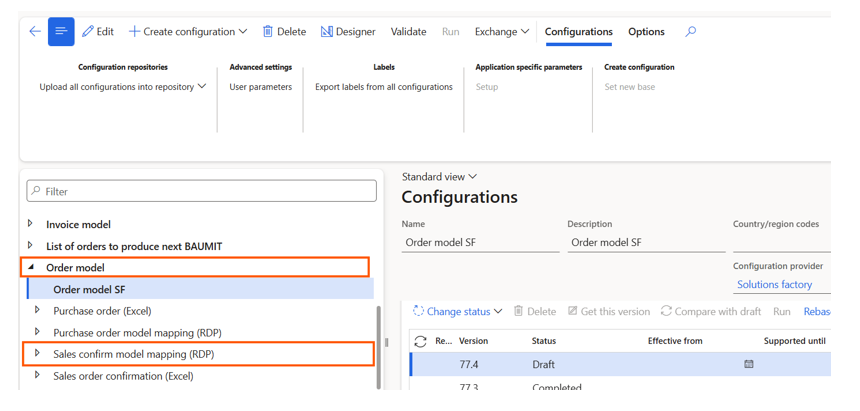
For the dox42 setup, the most important part is the Format Designer. The goal at this stage is not to create the final document layout in ER. Instead, the ER format is used to transfer the prepared report data into dox42, where the actual document structure and template design are created and maintained using the dox42 Data Map Designer and the corresponding Word template.
Structuring the ER format
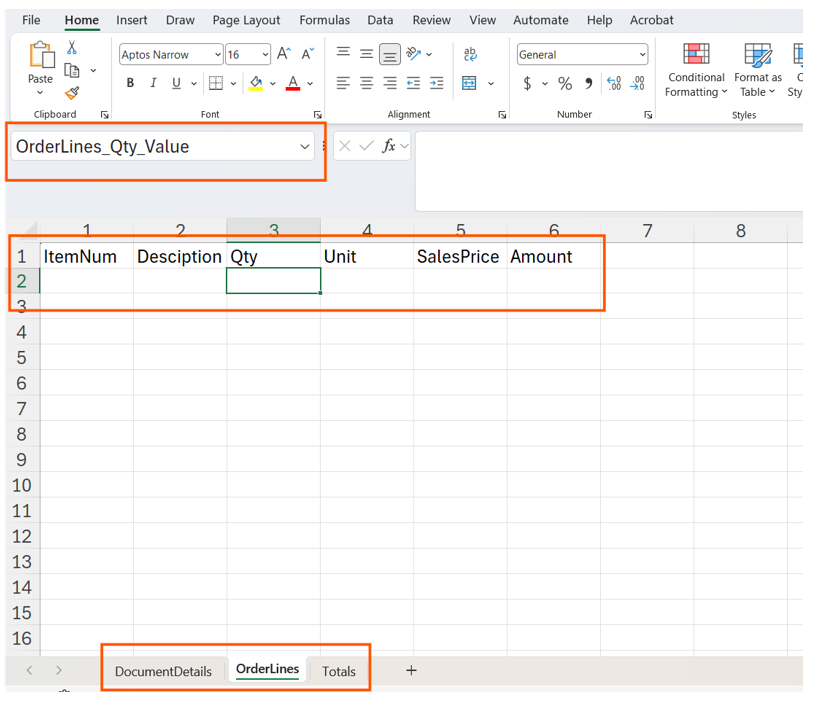
For dox42 scenarios, we recommend using the standard Excel format in Electronic Reporting. The setup can stay very simple: create the required labels and values in Excel and define the corresponding names in Excel Name Manager. These names are then available in the ER Format Designer and can be mapped to the corresponding elements of the ER data model.
A practical approach is to organize the Excel file into separate logical sections, for example:
- Document details
- Order lines
- Totals
Within each section, use a simple two-row structure:
- the first row contains the labels;
- the second row contains the corresponding values.
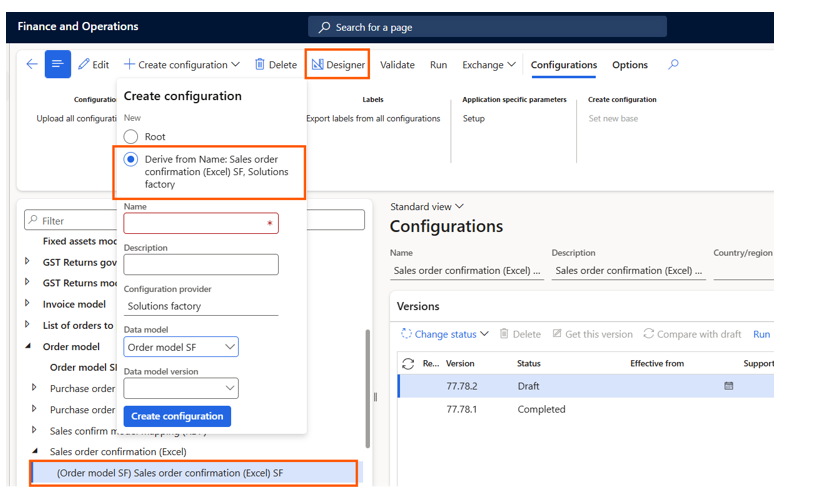
Once the Excel file is prepared, create a new derived Sales order confirmation (Excel) format configuration based on the standard ER format.
Open the derived format in Format Designer and upload the Excel file prepared in the previous step.
After uploading the Excel template, bind all labels and values in the Format Designer to the corresponding elements of the ER data model. To make this step easier, you can use the standard Microsoft Sales order confirmation (Excel) format as a reference. Open the standard format in Format Designer, review the existing bindings, and reuse the same model elements in your derived configuration where applicable.
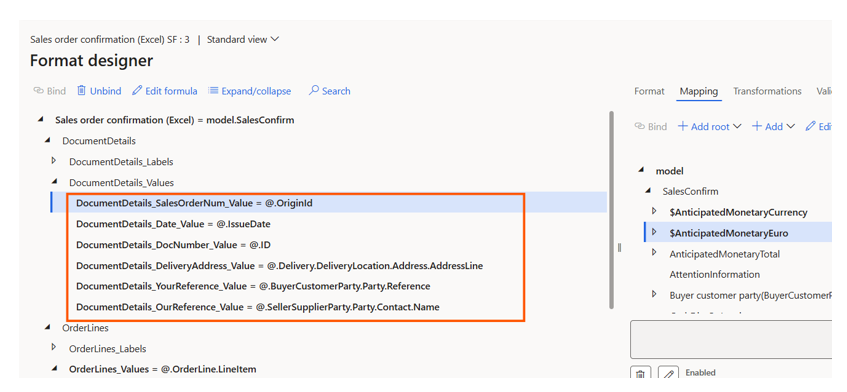
Once all required fields are mapped, validate the format and complete the current ER configuration version.
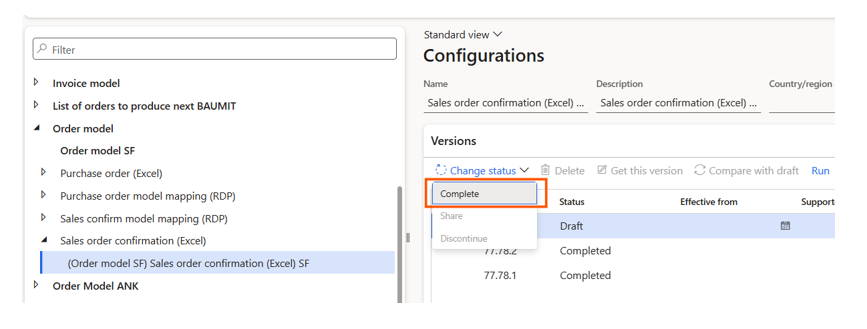
Configuring Report Destinations
Link the dox42 configuration to the ER format
After the ER format has been prepared, it needs to be linked to a dox42 configuration before it can be used in the report setup. Create the corresponding dox42 configuration in System administration → Setup → dox42 → dox42 configurations by selecting our derived Sales order confirmation (Excel) ER format in the Format field.
You can also setup the language reference field. It defines which language should later be used when selecting the appropriate dox42 report template:
- User preference - uses the language of the user who generates the report.
- Company preference - uses the language of the legal entity where the report is executed.
- Blank - no specific language preference is configured.
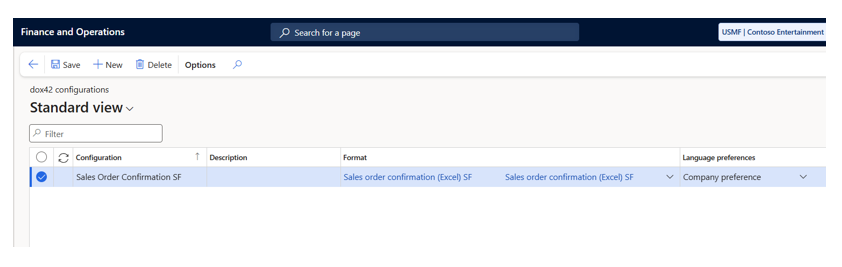
Setup in dox42 parameters
After linking the ER format to the dox42 configuration, the next step is to add this configuration to the dox42 parameters.
Open System administration → Setup → dox42 → dox42 parameters, go to the Electronic reporting reports tab, and add a new line for the dox42 configuration Sales Order Confirmation SF created in the previous step. Afterwards move to Report setup form and insert there the route to the report file.
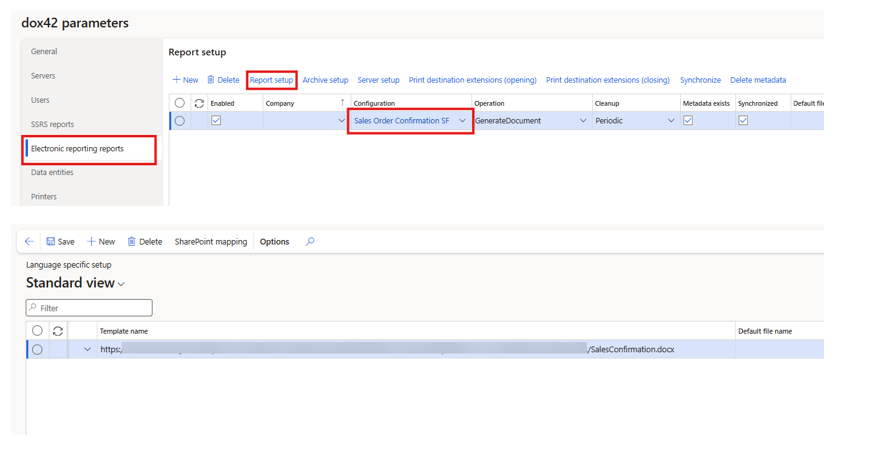
Electronic Reporting destination
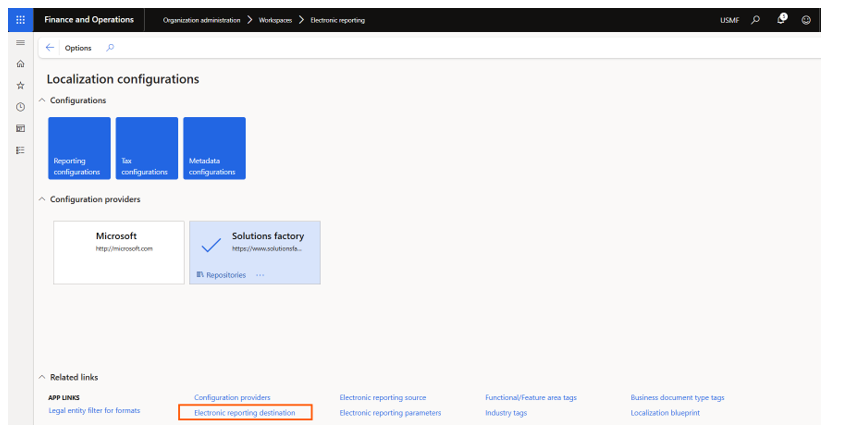
To configure the printing options for the Sales Confirmation report, open the Electronic Reporting workspace and select Electronic reporting destination.
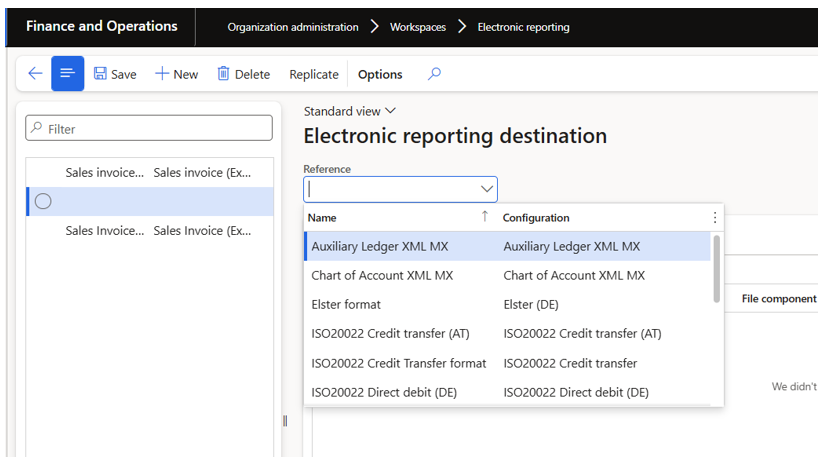
Select the required ER configuration in the Reference field.
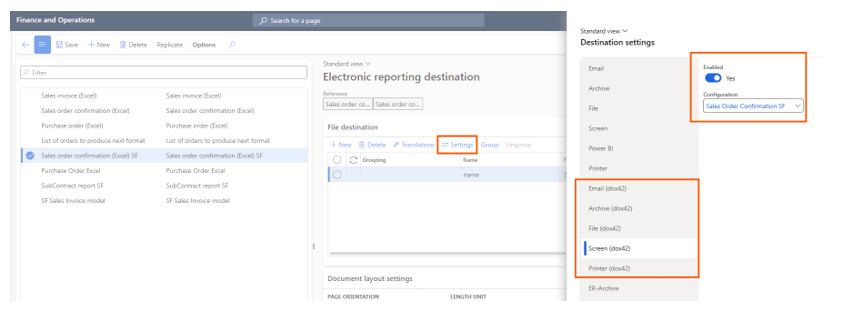
After selecting the required ER reference, create the File destination and open Settings for the corresponding file component.
In the destination settings, choose the required dox42 destination depending on how the generated document should be processed. Several dox42-specific options are available:
- Email (dox42);
- Archive (dox42);
- File (dox42);
- Screen (dox42);
- Printer (dox42).
Enable the destination(s) required for your scenario and select the dox42 configuration created in the previous step.
For our Sales Confirmation example, we can enable Screen (dox42) and select the Sales Order Confirmation SF configuration to test the report output directly on screen.
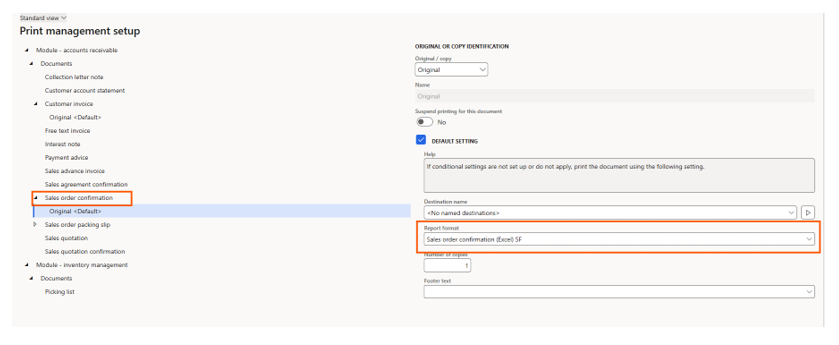
For reports that are executed through Print Management, one additional ER setup is required. In Print management setup, select the relevant document and choose the corresponding Electronic Reporting format in the Report format field. This links the Print Management document to the ER configuration that will be used when the report is generated through dox42.
For our Sales Confirmation example, select Sales order confirmation and choose the derived Sales order confirmation (Excel) SF format.
Creating the dox42 report design
Generating metadata for dox42 report
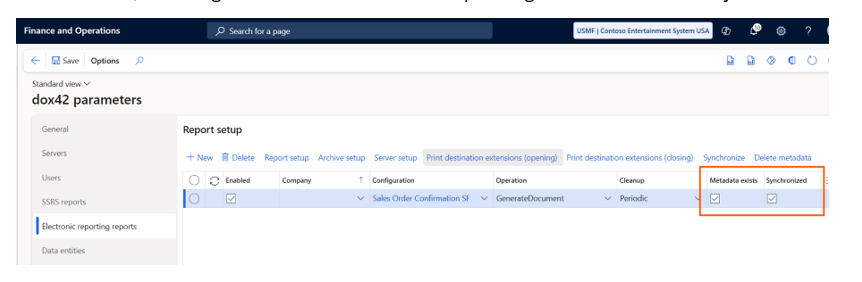
Once the ER format is prepared, the next step is to make the report metadata available in dox42. The process is very similar to working with an SSRS-based report. Before configuring the report design in the dox42 template, you first need to generate and synchronize the metadata for the ER report in D365 F&O. To do this:
- Print the ER report once so that the required metadata is generated;
- Make sure that checkboxes of the ER report setup are marked like in the picture below, meaning that the metadata of the report is generated successfully:
Setting up supporting data sources in Data map Designer
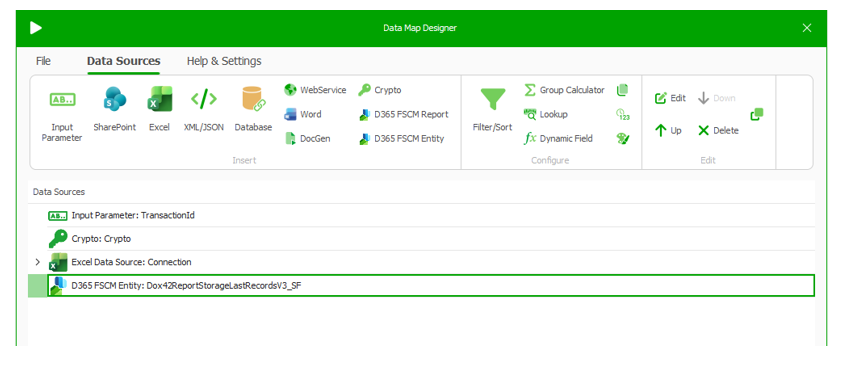
After the metadata has been synchronized, the Data Map configuration in Word dox42 add-in follows the same general approach as for an SSRS-based dox42 report. The standard supporting data sources can be configured in the same way, including:
- Input Parameter;
- Connection Excel file;
- Crypto;
- Dox42ReportStorageLastRecordsV3_SF entity with the Last TransactionID.
Electronic Reporting data sources
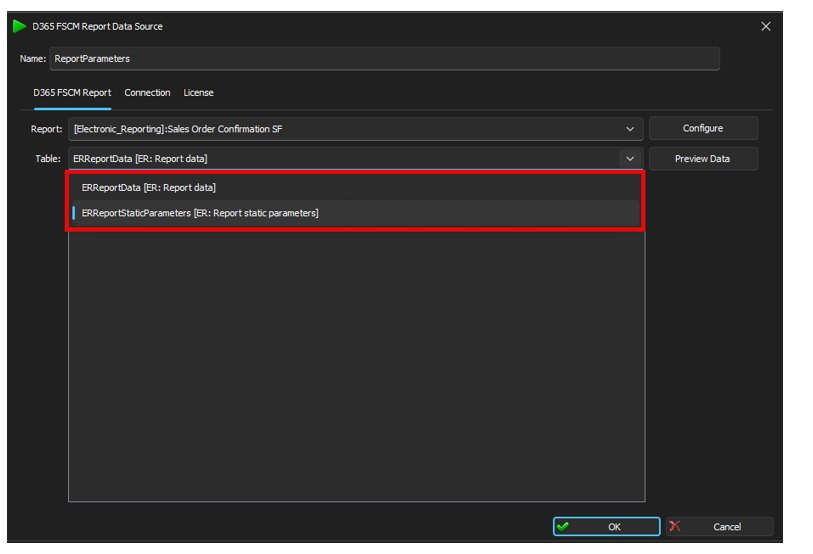
The synchronized ER report metadata is available in the dox42 Data Map Designer as a D365 FSCM Report data source.
Electronic Reporting data is exposed through two available tables:
- ERReportData;
- ERReportStaticParameters.
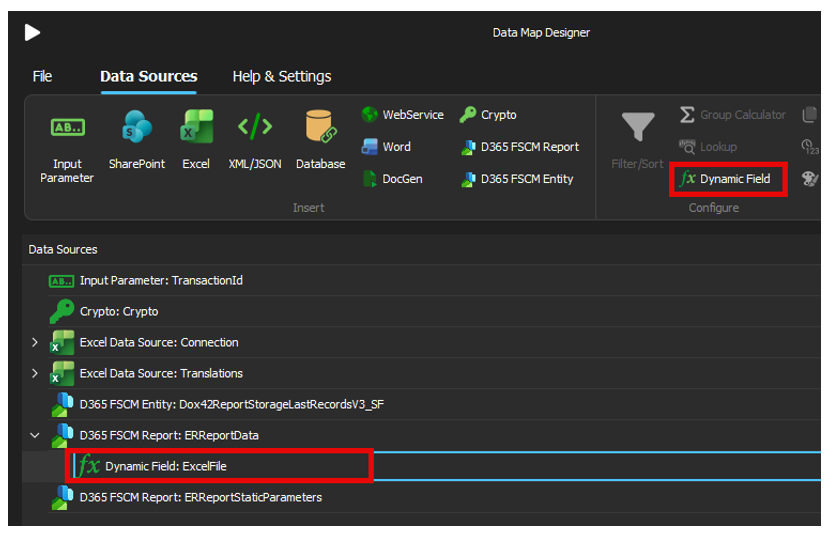
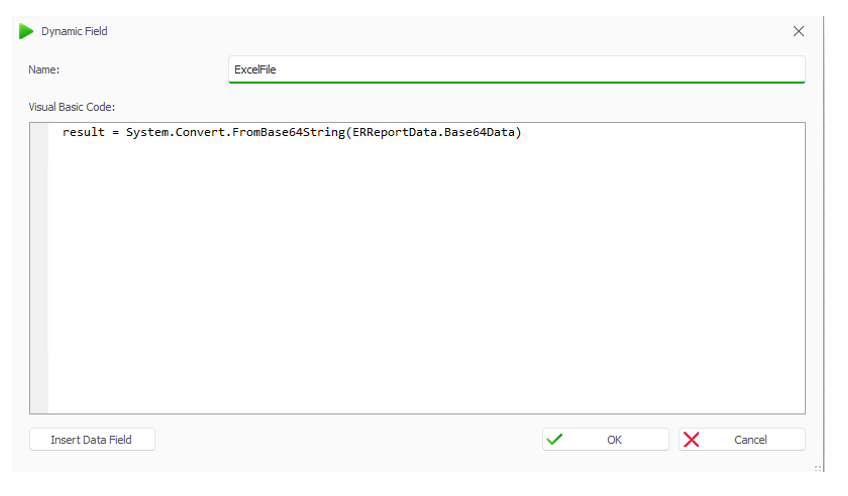
The ERReportData table contains Base64Data field that stores the ER data as a Base64-encoded string. To use the data in the final report design, we need to decode it and make it available in a usable format inside the Data Map Designer. For this purpose, add a new Dynamic Field to the ERReportData data source with following result:
Parsing report data from Excel
Because the ER configuration uses an Excel format as its output, the same Excel template can be used now when configuring the corresponding data sources in dox42 template.
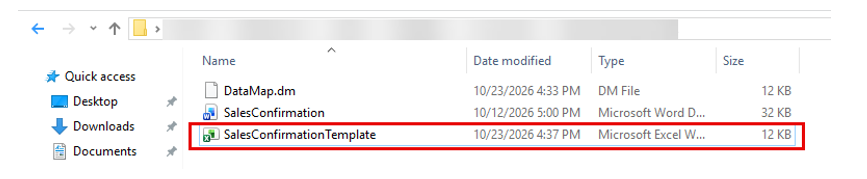
1. As a first step, copy the Excel template used by the ER format from D365 F&O to the appropriate folder where you design your dox42 reports. This file will be used as the basis for the next Data Map configuration steps.
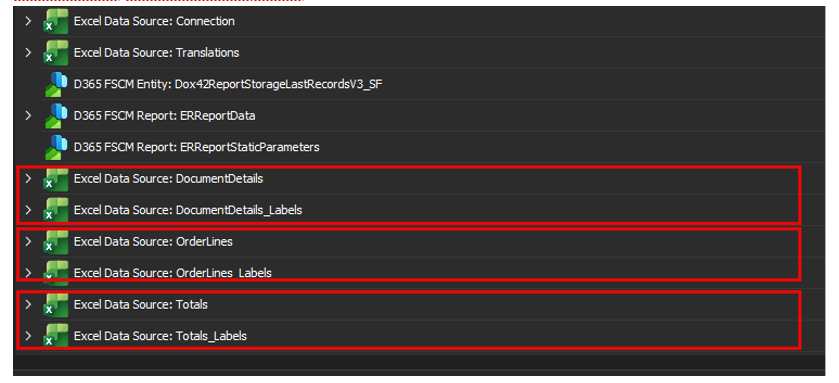
2. The next step is to read the prepared ER output through Excel data sources in the Data Map Designer. For each Excel sheet that was created in the ER format, we recommend creating a separate Excel data source in dox42.For every sheet, create two Excel data sources:
- one data source for the values
- one data source for the corresponding labels
For example, if the ER format contains sheets such as DocumentDetails and OrderLines, the Data Map can have corresponding pairs such as DocumentDetails/DocumentDetails_Labels and OrderLines/OrderLines_Labels.
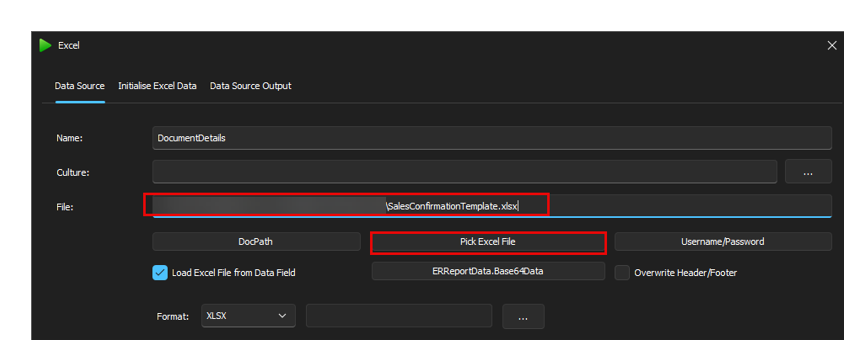
3. To create a new Excel data source, click Excel, click Pick Excel file, and select the Excel template copied from D365 F&O.
4. Move to Data Source Output tab and pick the data range of the fields that you are going to use in a template.
- Activate First row of selected Range contains Column Names checkbox in case you are setting up Excel data source for values and leave it blank in case you are setting up the data source for labels.
- Activate Read until first empty cell checkbox in case you are setting up the data source with possibility of having multiple lines
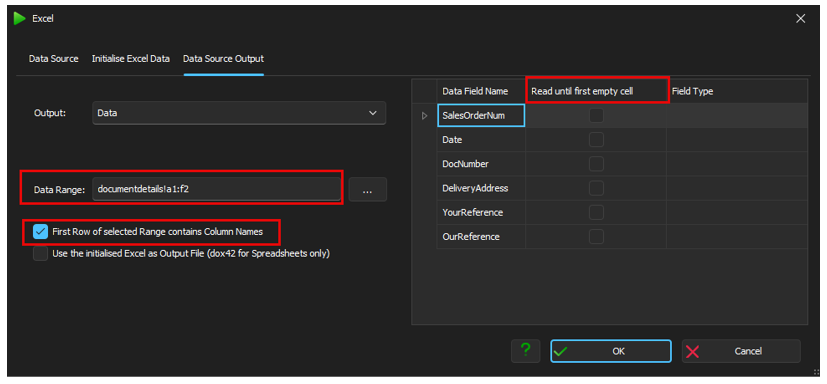
5. Move back to Data source tab - activate checkbox Load Excel from Data field; choose created in previous steps dynamic data field called ExcelFile from ERReportData table and setup the format XLSX for the file.
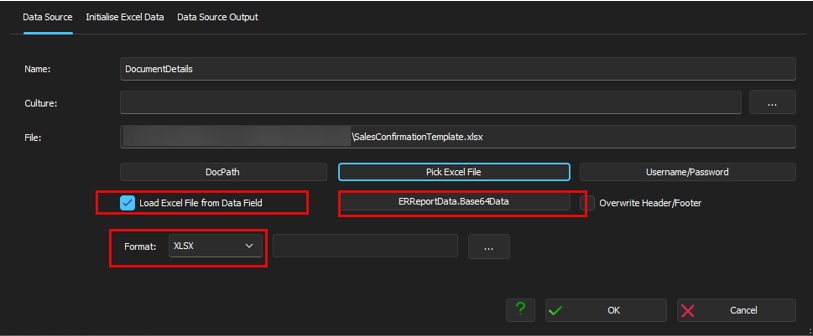
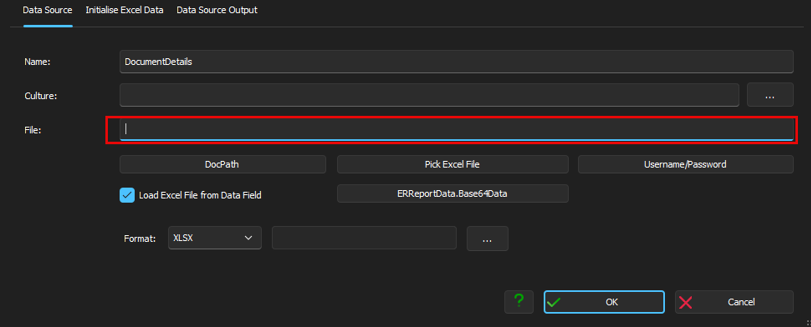
6. Once the Excel data source has been configured and tested, we recommend clearing the file path from the File field. This helps avoid environment-specific path dependencies and ensures that the report uses the Excel file provided dynamically during execution. Click OK to proceed.
Creating report design
Once the Data Map is fully configured and all the data sources are setup, you can move on to the report template design. From this point, the process is the same as for an SSRS-based dox42 template - the prepared data sources and fields can be used and inserted directly in the document design.
You can add the required fields from the Data Map into the Word template and arrange them according to the desired report layout.
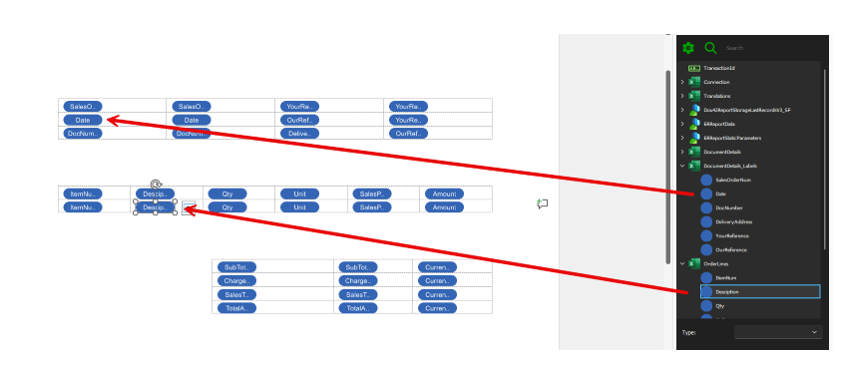
As described at the beginning of this article, our goal is to extend standard Sales Confirmation document with customer-specific design elements.
We can now complete these requirements directly in the Word template:
- Company logo: Add the company logo to the document header to create a branded Sales Confirmation.
- Custom footer: Design a footer with additional visual elements to match the company's document layout and branding requirements.
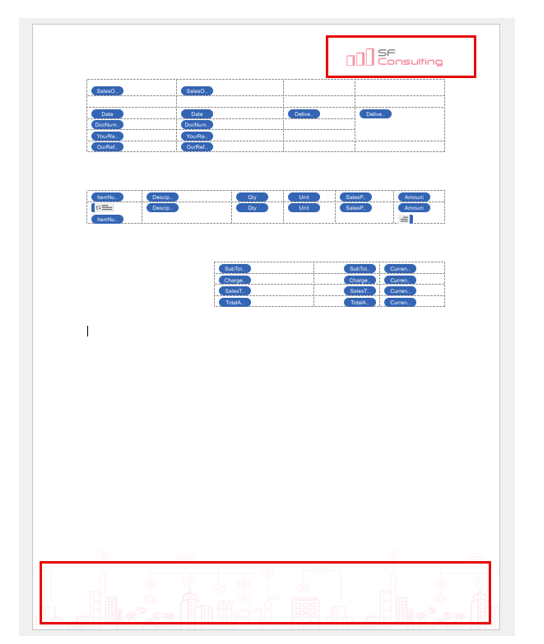
Once the report design is complete, you can generate the Sales Confirmation document locally in Word using the dox42 Office Add-in to preview and verify the final result.
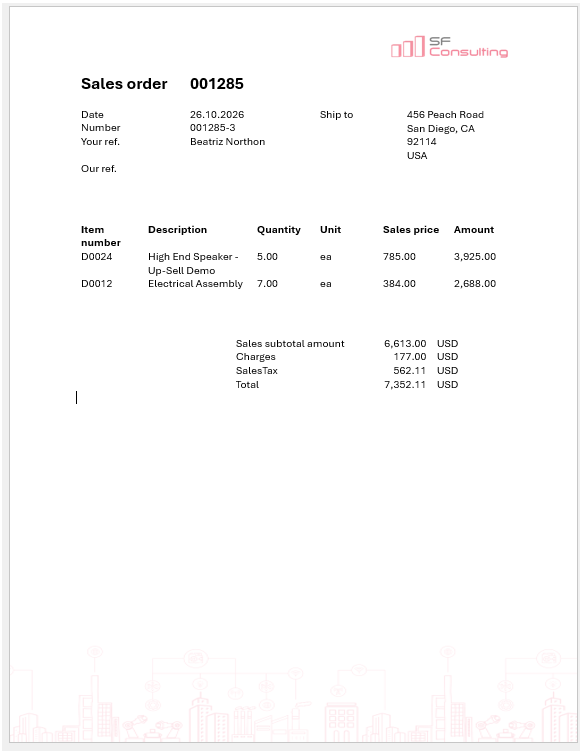
As shown in the example below, all standard Sales Confirmation fields are populated with the data prepared through Electronic Reporting, including sales order details, order lines, and totals. At the same time, our custom company logo and footer design are also displayed in the generated document.
Deploying and testing the report in D365 F&O
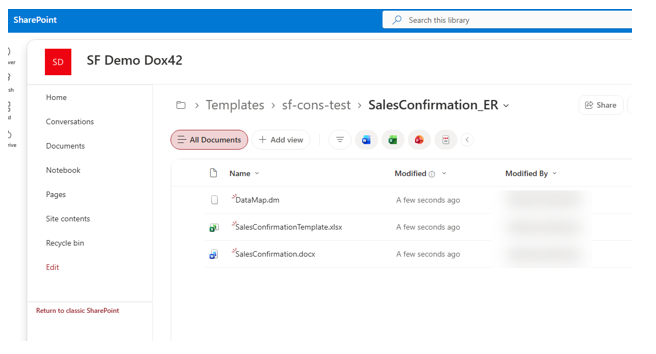
Once the report has been successfully generated and verified locally in Word, the next step is to upload the report files to SharePoint.
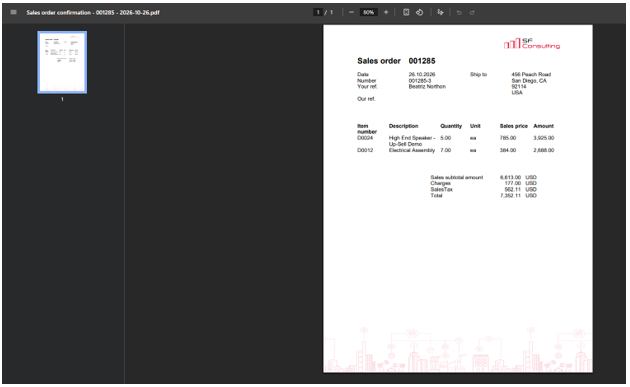
Once the files are uploaded, you can test the printing of Sales Confirmation report directly in D365 F&O.
Conclusion
In this article, we walked through the complete setup of an ER-based dox42 report in D365 F&O, from preparing the ER configuration and Data Map to designing and generating a customized Sales Confirmation document.
Although the initial configuration involves several substantial steps, many parts of the dox42 configuration can be reused for future reports. Common elements, such as the Input Parameter, Crypto data source, Connection file, Last record Entity do not need to be configured from scratch each time. Instead, an existing report can serve as a starting point, significantly simplifying the creation of new templates.
With Electronic Reporting becoming the standard approach for new business documents in D365 F&O, the ability to use ER as a data source for dox42 becomes increasingly relevant. This approach combines the flexibility of ER for preparing and extending report data with the document design capabilities of dox42, providing a practical solution for customer-specific reporting requirements.

Keep up to date with new articles before anyone else, subscribe to our mailing list
Table of Contents








Thank you for the request!
We will get back to you soon.