


Electronic Reporting tips and tricks (part 2)
This is the second article in our Tips and Tricks series dedicated to working with ER. In this series, we share practical observations from real projects, focusing on details that are rarely documented yet can significantly influence report stability, maintainability, and predictability.
Over the years, our team has encountered many subtle behaviors and edge cases that are easy to overlook but important to understand.
Below are several practical tips that may help you avoid common pitfalls and design cleaner, more reliable ER solutions.
Excel templates settings:
1. Vertical merging and “Wrap text” can unexpectedly hide rows
Have you ever merged several rows vertically in an Excel template to make a long remark look visually correct. And later noticed that some lines disappear in the final report?
When multiple rows are merged into one cell and the “Wrap text” option is enabled, ER may automatically hide subsequent rows if their content does not require the same height.
For example:
The first invoice line contains a long remark “Addition comment” and it spans two lines and looks correct:

The next invoice line contains a short remark “New comment” one line is enough:

As a result, the row containing other data (for example, Warehouse) may become hidden, even though the label and the value are present.
This behavior is caused by automatic row height recalculation based on merged cell content.
When designing dynamic sections of a report, it is recommended to avoid vertical merging whenever possible.
Configuration options:
1. Parameter tables: use find() instead of FIRSTORNULL
Tables such as CompanyInfo, InventParameters, and similar parameter tables are designed to contain one record per legal entity.
When retrieving data from such tables in model mapping, the recommended approach is to use the table’s find() method instead of the FIRSTORNULL ER function.
The find() method follows the standard D365FO pattern, respects table logic, and ensures technically correct behavior.
Implementation is straightforward:
- Add the table as a Table data source in model mapping.
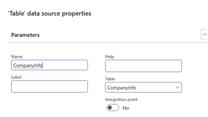
- Create a calculated field. In the Formula, call the method, for example:
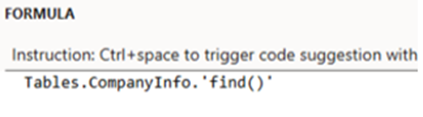
3. Use Transformations to centralize formatting
Have you ever received a requirement such as: “All amounts must be printed with four decimal places in US format.”?
It is technically possible to configure each Excel cell separately. However, this creates duplication, increases maintenance effort, and may lead to support issues.
A better approach is to use Transformations in ER. By defining a transformation once, you can apply the same formatting logic to multiple fields across the report.
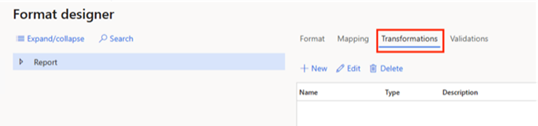
For example, using a format expression inside a transformation allows the value 1234,56 to be rendered consistently as 1,234.5600 (for US format).
Just create new Transformation (“Amount”):
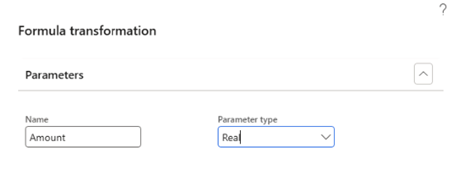
Specify the required format in the Formula field:

Apply this transformation to the amount fields in the format:
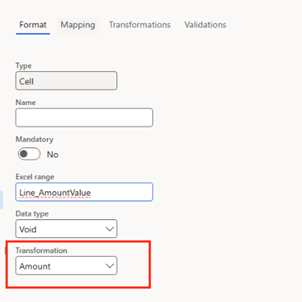
Keeping formatting logic inside GER instead of distributing it across Excel templates makes the overall solution more robust.
4. Country-specific fields are not restricted by ER
In D365FO tables, certain fields are limited by the CountryRegionCodes property. Standard forms respect this property and hide fields if the legal entity country does not match.
ER does not enforce this restriction.
It can access and print values from country-specific fields even if the current legal entity country is not included in the CountryRegionCodes property.
This behavior can be useful in some scenarios. However, it can also introduce risks if country logic is important for compliance or report correctness.
If country-based validation is required, it must be explicitly implemented in model mapping logic.
5. Calling D365FO methods with parameters
Display methods are commonly used in ER calculations. But it is also possible to call methods that require parameters.
In model mapping:
· Create a calculated field. Define the method call in the Formula.
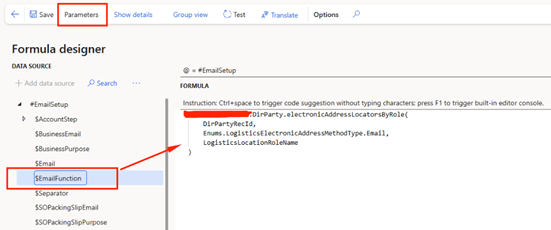
· Use the Parameters option to specify required parameter types.
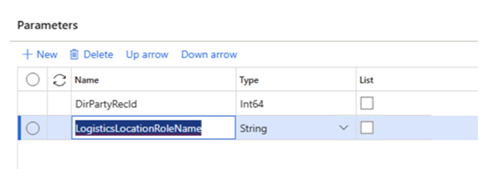
Instead of repeating similar calculations, you define the logic once and reuse it where needed.


Keep up to date with new articles before anyone else, subscribe to our mailing list
Table of Contents





Thank you for the request!
We will get back to you soon.