

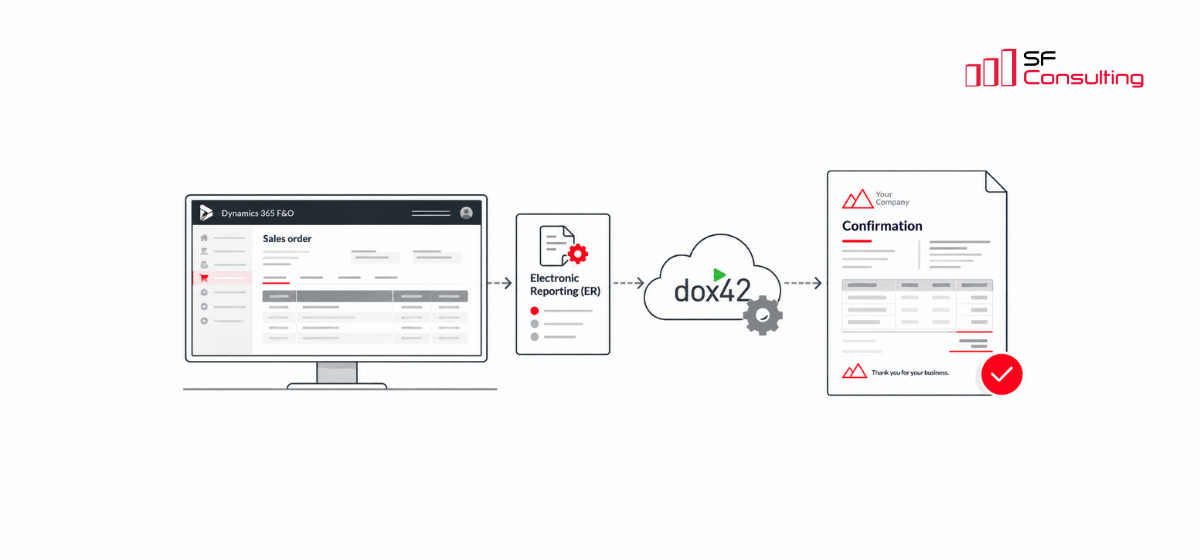
Designing ER-Based dox42 Reports in D365 F&O: Practical Guidelines
When working with ER-based dox42 reports in Dynamics 365 F&O, the way report data and templates are structured can make a significant difference in how easily reports can be developed, tested, and maintained.
While the integration between Electronic Reporting and dox42 provides flexibility for creating customized business documents, there are several technical details worth considering during report development. Small decisions in the ER Excel format, Data Map configuration, or Word template design can help avoid common errors and reduce the effort required for future modifications.
This article builds on our earlier step-by-step guide, Getting Started with ER-Based dox42 Reports in Dynamics 365 Finance and Operations, and shares practical recommendations based on our experience with customer projects.
Rather than covering the initial setup again, we focus on two areas: preparing the ER Excel template and configuring the dox42 Data Map and report templates. The goal is to make reports easier to troubleshoot, modify, and maintain as requirements evolve.
ER Configuration and Testing Considerations
The following recommendations focus on handling repeating records in the ER format and configuring additional output options that make it easier to verify the generated data and troubleshoot potential issues during report development.
1. Set the Replication Direction in the ER Format
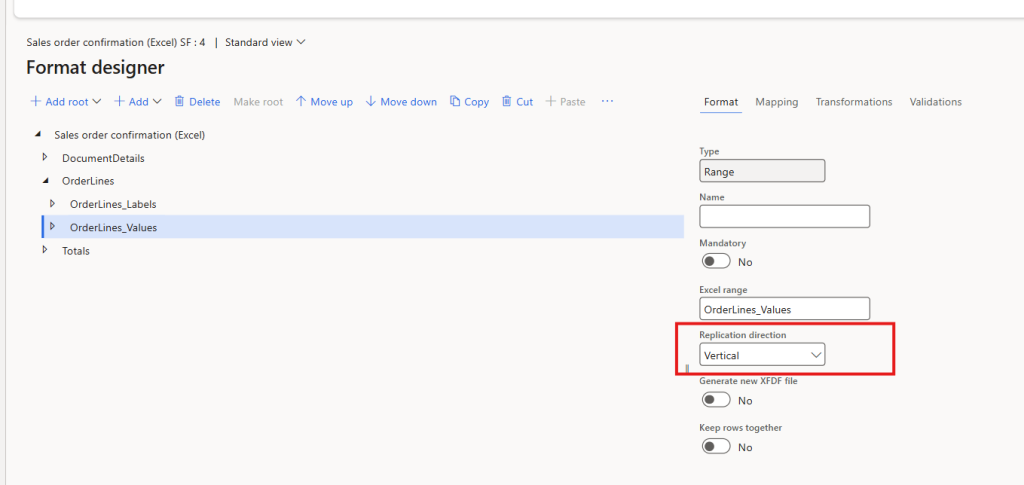
When configuring the ER Format Designer in D365 F&O, make sure to set the Replication direction to Vertical for ranges containing multiple records, such as OrderLines.
Unlike SSRS-based dox42 reports, where repeating records can be handled directly in the Word template, ER-based reports require replication to be configured in both the ER format and the dox42 Word template.
2. Enable the Standard ER Screen Destination for Testing
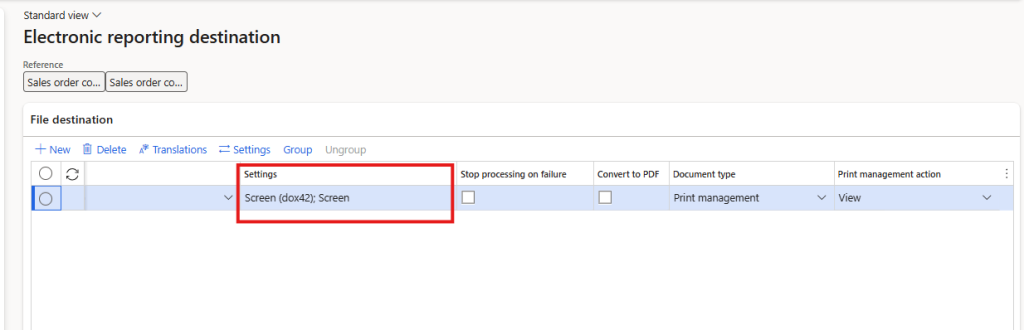
To simplify testing and troubleshooting, we recommend configuring the standard Screen destination in Electronic Reporting in addition to the required dox42 destination.
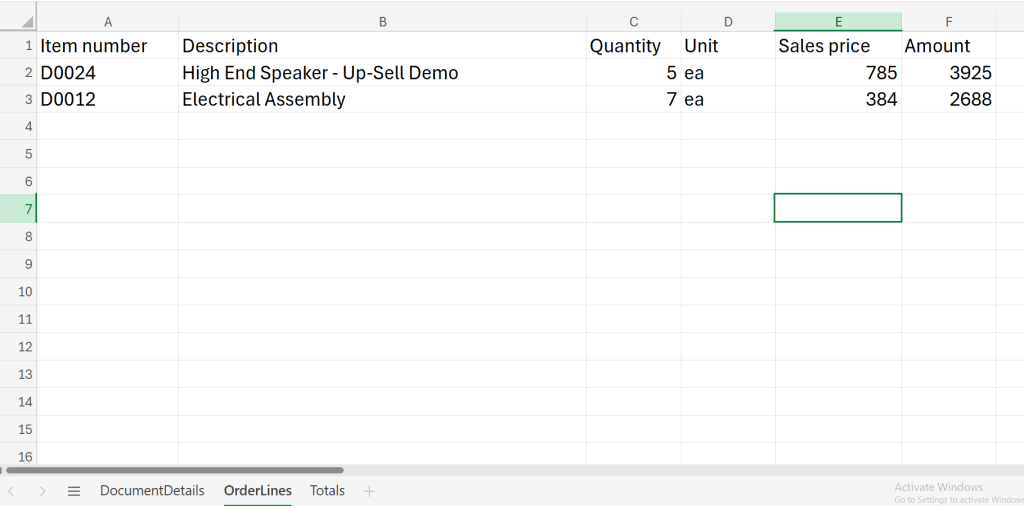
With both destinations enabled, generating the report in D365 F&O allows you to obtain not only the final document created by dox42, but also the Excel file generated by ER, containing the actual report data populated during execution. This is particularly useful for verifying that all required fields and repeating records are correctly prepared and transferred by Electronic Reporting before they are processed by dox42.
In practice, this provides functionality similar to the Preview Data option available for SSRS-based reports, making it easier to identify whether an issue originates from the ER data preparation or the dox42 template configuration.
Designing the ER Excel Template
When creating an ER-based dox42 report, it is important to structure the Excel template carefully, as the same file is used both as the ER format template in D365 F&O and as the basis for configuring Excel data sources in the dox42 Data Map Designer. A well-organized Excel structure simplifies data mapping in ER and makes it easier to retrieve and use the prepared data in the final Word report design.
Based on our experience with customer projects, we recommend following a few practical guidelines when preparing the ER format.
1. Structure the Format According to the Expected Document Layout
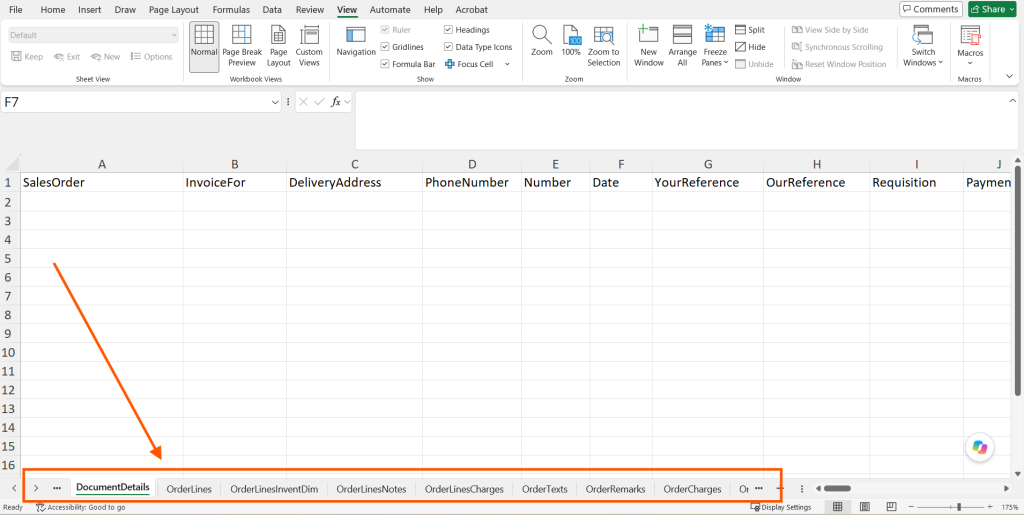
Organize the data into separate logical sections based on how it will later be used in the final document. For example, instead of placing all fields into one large structure, divide them into separate Excel sheets such as Company information, Document details, Order lines, Charges and Notes. This makes the ER format much easier to understand and also simplifies mapping the fields to the data model, because the format structure already follows the logic of the final report.
The same structure can later be reflected in the dox42 Data Map Designer by creating separate data sources for the corresponding sections.
2. Use a Simple Two-Row Structure for Labels and Values
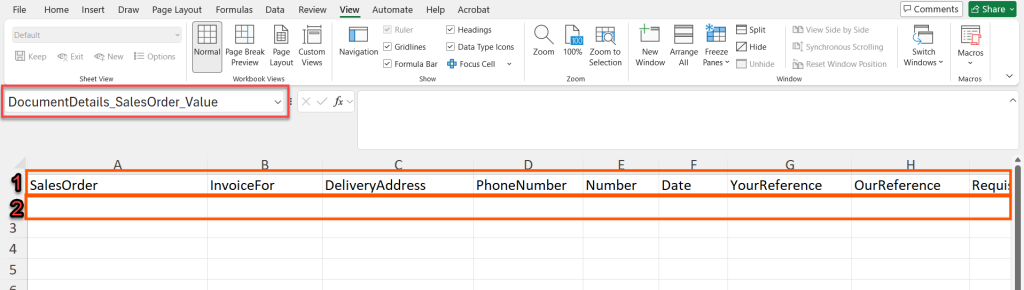
For further use in the dox42 Data Map Designer, one of the most convenient ways to prepare the data is to organize it into two rows. The first row contains the labels for all required fields, while the second row contains the corresponding values.
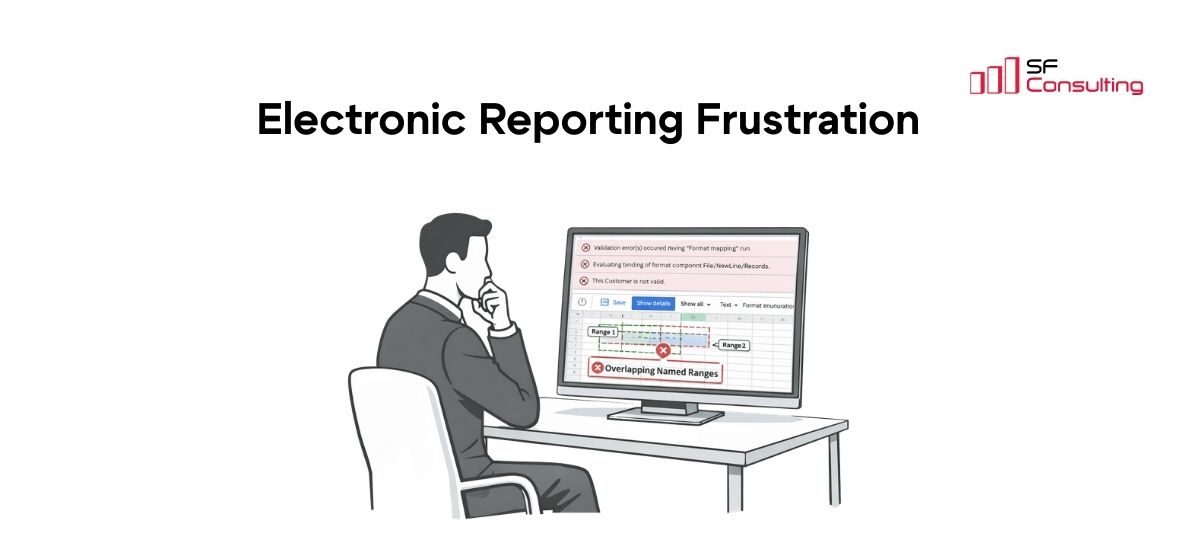
As with a standard ER Excel format, it is also important to define the required named ranges in Excel Name Manager for both the labels and the values. These names are then used in the ER format so the fields can be mapped to the corresponding elements from the data model.
3. Keep Field Values Clean and Naming Consistent
When preparing the Excel format, it is important to keep the value cells as clean as possible:
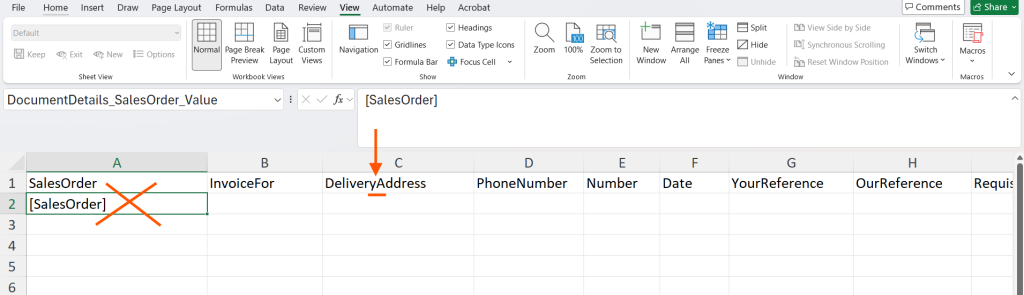
- Unlike some standard Microsoft ER formats, there is no need to write the field name directly into the value cell as a placeholder. For example, you do not need to enter
[SalesOrder]into the cell itself. It is enough to assign the appropriate field name through Excel Name Manager and use it for the ER binding. This avoids situations where placeholder text such as[SalesOrder]is printed in the final document when the actual field does not contain a value. - It is necessary to use consistent technical names for fields and named ranges. If a field name contains several words, avoid spaces and use a continuous name such as
DeliveryAddress. Spaces in technical names can cause issues when the report structure is processed in dox42.
4. Ensure Correct Data Formatting
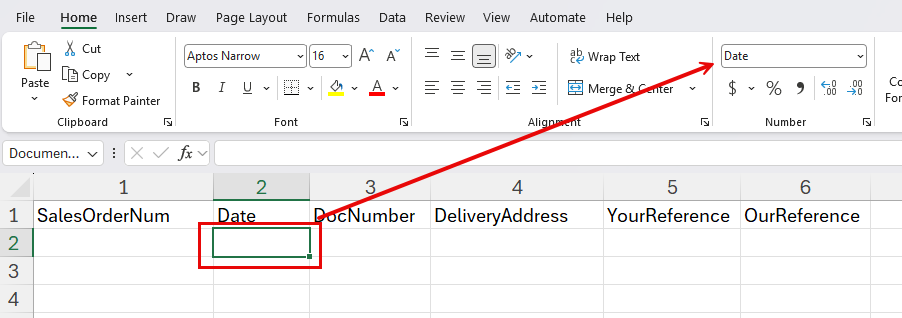
When preparing the Excel template for an ER-based dox42 report, make sure to configure the appropriate cell formats for fields that require specific formatting.
Unlike SSRS-based dox42 reports, where field formatting is typically handled directly in the Word template, ER-based reports also require attention to formatting in the Excel file used by the ER format.
A common example is a date field. As shown in our Sales Confirmation example, we have configured the corresponding Excel cell with the Date format to ensure that the value is correctly represented in the ER output and can subsequently be used in the dox42 report design.
Configuring the dox42 Data Map and Report Templates
Once the ER format has been prepared, the next step is to configure the corresponding data sources in the dox42 Data Map Designer and use them in the Word report template.
At this stage, it is important to pay attention to how data sources are organized and configured, as well as how shared template elements are maintained across different reports.
The following recommendations focus on simplifying report design and maintenance, avoiding common configuration issues, and reducing the effort required for future modifications.
1. Organize Excel Data Sources in Data Map by Values and Labels
We recommend creating separate Excel data sources for values and labels for each sheet defined in the ER format.
For every Excel sheet, create two corresponding data sources in the dox42 Data Map:
- Values – contains the actual report data retrieved from Electronic Reporting.
- Labels – contains the corresponding field labels used in the report design.
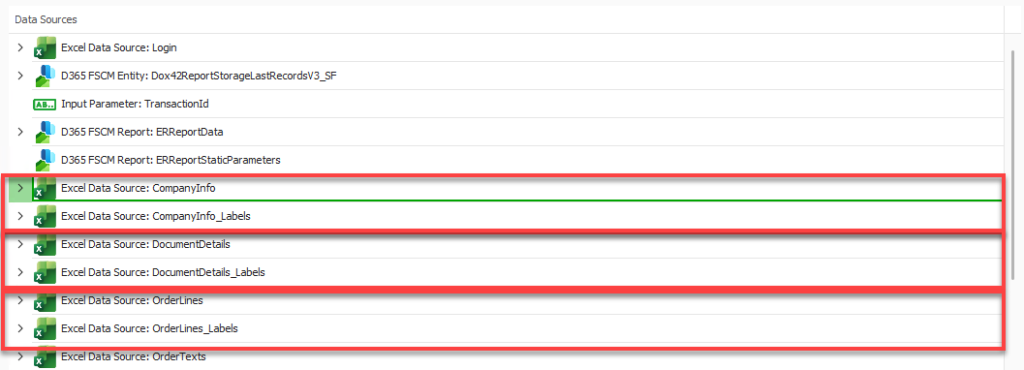
For example, if the ER format contains sheets such as CompanyInfo, DocumentDetails, and OrderLines, the Data Map should contain the following pairs:
- CompanyInfo / CompanyInfo_Labels
- DocumentDetails / DocumentDetails_Labels
- OrderLines / OrderLines_Labels
This approach keeps the Data Map well-structured and easier to maintain, allowing report values and their corresponding labels to be managed independently.
2. Configure Excel Data Source Output Settings
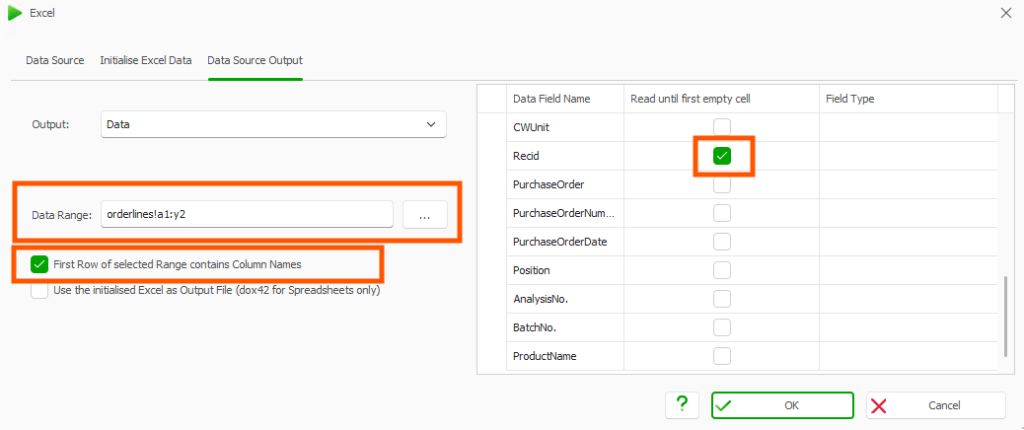
When configuring Excel data sources in the dox42 Data Map Designer, pay attention to the following options in the Data Source Output tab:
- First row of selected Range contains Column Names – Enable this option for data sources containing values, where the first row of the selected Excel range contains field names. For data sources containing labels, leave this option disabled so that the labels are read as data rather than column headers.
- Read until first empty cell – Enable this option for data sources containing multiple rows, such as OrderLines. Without this setting, only the first row will be read, and as a result the generated document will contain only one order line.
3. Remove Local File Paths from Excel Data Sources
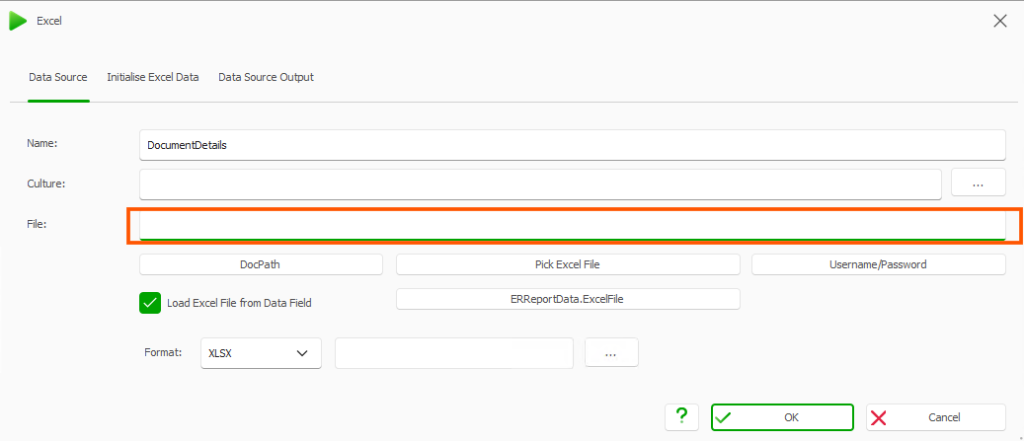
Once an Excel data source has been configured and tested, we recommend clearing the file path from the File field in the Data Map Designer.
Keeping a local file path may create dependencies on a specific environment or file location, potentially causing errors when the report is executed elsewhere.
By removing the path, you ensure that the data source uses the Excel file provided dynamically during report execution, rather than relying on a local file. This makes the report more portable and helps avoid issues when moving between environments.
When designing dox42 reports, we recommend minimizing the number of data fields used in shared Word files, such as common header or footer templates that are reused across multiple reports.
When a shared file is used by several report templates, adding new fields to it may require updating the corresponding Data Maps of all reports that reference that file. Otherwise, missing or incorrectly configured fields can cause errors during report generation.
To avoid unnecessary dependencies, keep shared files as simple as possible and include only the fields that are common to all reports using them. This helps reduce the risk of errors, simplifies maintenance, and minimizes the testing effort required when making changes to shared templates.
Conclusion
Following these recommendations makes ER-based dox42 reports easier to develop, test, and maintain. A clear Excel structure, consistent Data Maps, and carefully designed shared templates help reduce configuration issues, simplify troubleshooting, and make future changes more predictable.
From my experience working on customer projects, the most important lesson is that good reporting design starts long before the Word template. Electronic Reporting should provide a reliable, well-structured data layer, while dox42 should focus on document design and generation. Getting this separation right from the beginning is what makes the reporting solution easier to extend, maintain, and adapt to changing business requirements.

Keep up to date with new articles before anyone else, subscribe to our mailing list
Table of Contents



Thank you for the request!
We will get back to you soon.