

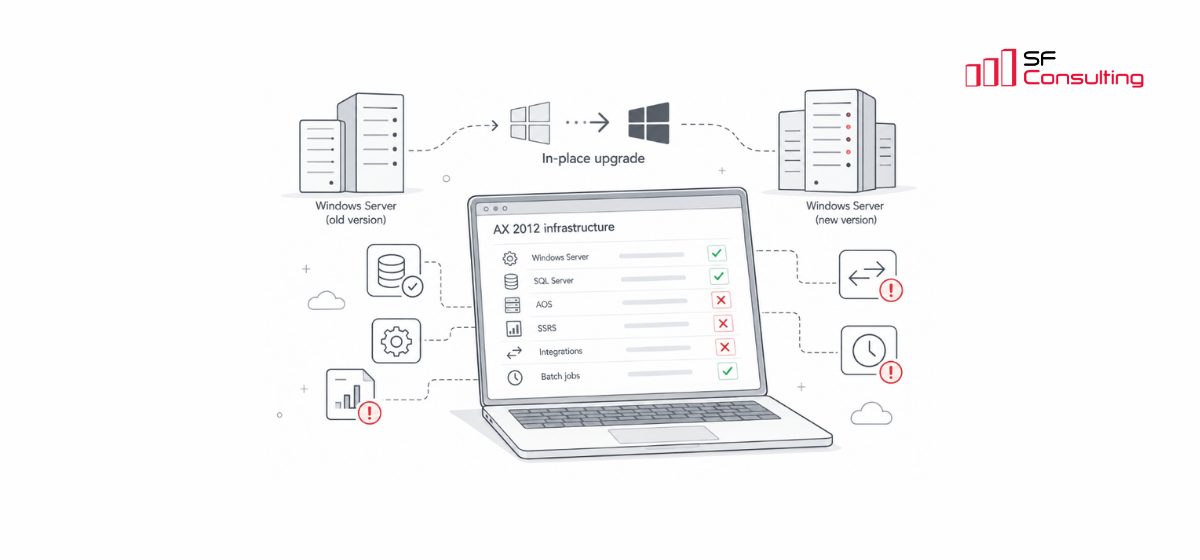
In-place upgrade of AX 2012 infrastructure: issues we faced in practice
In another article, I already explained the differences between an in-place infrastructure upgrade and an upgrade with new servers.
When upgrading Microsoft Dynamics AX 2012 infrastructure, an in-place upgrade seems to be the simplest option. The server remains the same, including its name, IP address, installed services, local paths, and most settings and dependencies. There is no need to reinstall AX 2012 components or completely reconfigure the environment on a new server.
This is what makes an in-place upgrade attractive for old AX 2012 environments that have been running for many years and have a lot of settings, integrations, and dependencies.
But from our experience, the main difficulties often start not during the Windows Server upgrade itself, although there can be surprises there too. Problems often appear after the first restart of the upgraded server, when we need to make sure that all AX 2012 components still work.
Windows Server was upgraded successfully, but AOS no longer starts. AOS starts and the AX 2012 client connects, but SQL Server Reporting Services (SSRS) no longer works. Reports are generated, but can’t be printed. Integrations continue to run according to schedule, but return errors when connecting to external services. There can also be problems with batch jobs, SQL Server linked servers, and other infrastructure components.
Finding and fixing such errors often takes most of the time during an in-place upgrade.
In this article, I will describe several problems we faced in practice and how to fix them.
Issue #1. The server no longer boots after the upgrade
This is one of the biggest risks of an in-place upgrade. That is why we recommend creating a full server backup before the upgrade, instead of only backing up the AX 2012 databases.
We have faced situations where, after installing a new Windows Server version, the machine restarts several times. Then Windows tries to roll back the upgrade, but can’t restore the previous state.
A typical scenario looks something like this:
- Installing updates
- Restarting
- Working on updates
- Restarting
- Attempting to recover installation
- Restarting
The reason may have nothing to do with AX 2012. It could be an incompatible driver, damaged system components, or a Windows Server Setup error.
If Windows no longer boots, it doesn’t matter whether AOS, SQL Server, or the AX application code is working. First, we need to get the server running again.
What to do:
Before the upgrade, create a full server backup. For virtual machines, make sure you can restore the complete VM, including its configuration and system disks. It is also better to back up the SQL Server databases separately.
If the upgrade fails, check the Windows logs and try to find the reason for the problem.
Issue #2. Windows Server and SQL Server are running, but AOS doesn’t start
This is a more typical AX 2012 problem. Windows Server is running, RDP is available, and SQL Server is started, but the Microsoft Dynamics AX Object Server service has the status Stopped.
An attempt to start AOS ends with an error, or the service starts and stops almost immediately.
The first thing we check in this situation is Windows Event Viewer, especially the Application and System logs. Very often, the problem is related to infrastructure settings rather than AX 2012 application components.
Possible cause 1. AOS settings in the Windows Registry have changed or disappeared
The Windows Registry contains configuration settings for AOS instances. Before an in-place upgrade, we strongly recommend exporting the following registry key:
You can use this command:
This is one of the AX 2012-specific settings that can easily be missed in a standard Windows Server upgrade checklist.
In some cases, after a Windows upgrade, this registry key may disappear or become corrupted. As a result, AOS cannot read its configuration settings and fails to start.
What to do:
Check the AOS settings in the Windows Registry and compare them with the saved copy. If some entries are missing or damaged, restore the required settings from the backup after checking that they match the server configuration.
Additionally, if application crash dumps are configured in your environment, it is useful to save the related Windows Error Reporting settings:
This registry key does not control AOS operation, but it can be useful for diagnosing application crashes after the upgrade.
Possible cause 2. AOS can’t connect to SQL Server
In Event Viewer, you may find many different errors from AOS and SQL Server. Usually, administrators try to fix them one by one. But it's worth paying attention to this error:
This is one of the typical AX 2012 problems with modern infrastructure. It usually happens when installing AX 2012 on a new server, but it can also happen after an in-place upgrade.
In our case, SQL Server 2022 was installed and running normally, but AX 2012 couldn't connect to it.
The reason was that AX 2012 relies on a legacy SQL Server component that is no longer installed automatically with newer SQL Server versions. The existing version of SQL Server Native Client didn't work correctly after the upgrade.
What to do:
To fix this issue, we recommend installing: Microsoft SQL Server 2012 Native Client – QFE.
Possible cause 3. The AOS service account has lost the required permissions
After a Windows Server upgrade, the AOS service may no longer start under the domain account that was configured before the upgrade.
For example, the AOS service has been running under the AXAOSService account for many years, but after the upgrade, Windows Event Viewer shows the following error:
The reason may be changes in local security policies, domain Group Policy Objects (GPO), account settings, or the account password.
A particularly annoying situation is when the required permissions disappear again after a server restart or Group Policy update. The administrator fixes the settings manually, the service starts working, but after GPO is applied again, the problem returns.
What to do:
Check which account is used to run the AOS service and verify that it is a member of the local Administrators group. You can find this group here:
Make sure the AOS service account is explicitly added to the local Administrators group, rather than relying solely on its membership in an Active Directory group.
If the group membership changes after domain policies are applied, check the active GPOs and adjust them accordingly.
It is also worth verifying that the service account has the necessary access permissions to AX 2012 and SQL Server resources.
Issue #3. SSRS is running, but reports can’t be deployed
After upgrading Windows Server or SQL Server, we check AX 2012 reporting. Existing reports may print correctly, but errors appear when trying to deploy a new or modified report from AX 2012.
Possible error 1. Not enough permissions to deploy a report
For deployment, you must have administrative rights to the SQL Server Reporting Services (SSRS) server.
Contact your administrator to deploy.
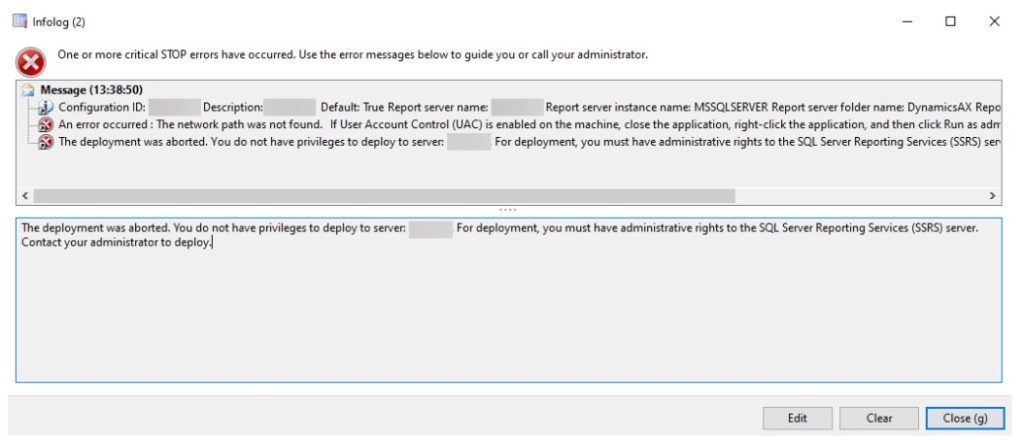
Many AX 2012 developers know this error.
Usually, the first thing a developer tries is restarting the AX client with administrator rights. But the error is still there.
What to do:
Check the permissions of the account used to deploy reports. It is important to understand that Windows local administrator permissions and SSRS security roles are not the same thing.
In Report Manager or the Web Portal, check the role assignments on the report server.
The Content Manager role is usually used to manage report content, while the System Administrator role is used for server-level administration.
Possible error 2. Access is denied when deploying SSRS reports
Another error we have seen is:
The deployment was cancelled because of an error. On the report server, verify that:
- The SQL Server Reporting Services service is running.
- SQL Server Reporting Services is configured according to the instructions in the Microsoft Dynamics AX Installation Guide (http://go.microsoft.com/fwlink/?LinkID=163796).
- The Remote Administration feature is allowed to communicate through Windows Firewall.
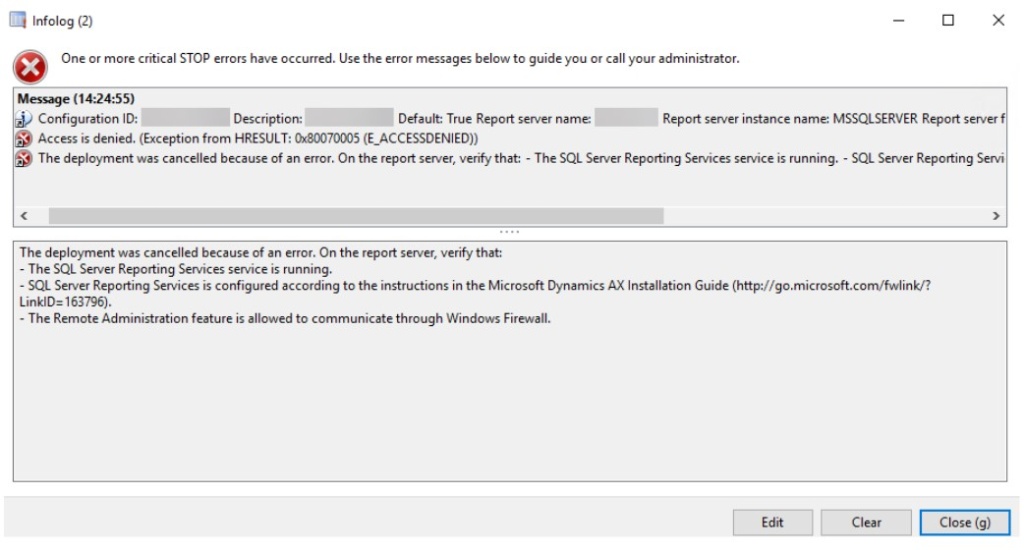
One possible reason for this error is that different security updates are installed on the AOS server and the Reporting Services server.
What to do:
You can use the following command to get the list of installed updates:
Or use PowerShell:
If you find differences in the installed updates, you can try installing the missing updates and check whether this resolves the error.
Issue #4. Integrations stop working because of TLS
This problem happens not only after an in-place Windows Server upgrade, but also when AX 2012 is installed on a new server with a newer Windows Server version.
A typical error message is:
The problem may appear when AX 2012 connects to external HTTPS services, for example when sending data to other systems or downloading information from external providers.
It can also affect standard AX 2012 integrations used to import currency exchange rates. In this case, the user may only see a general error message in AX 2012:
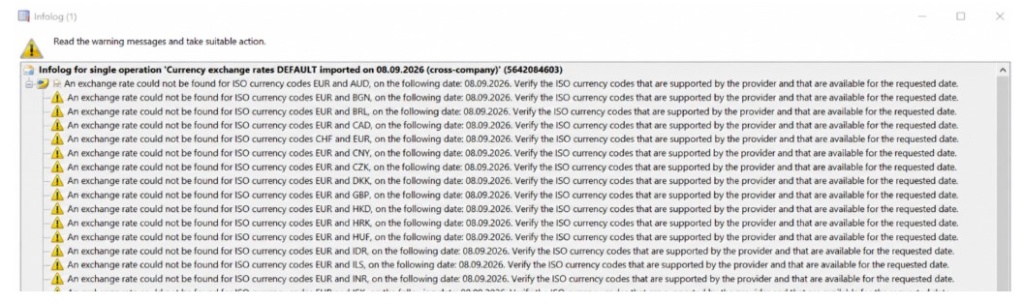
An interesting point is that a new Windows Server version does not necessarily change the integration settings. The problem may appear because of stricter security requirements and because old TLS 1.0/1.1 protocols are disabled.
At the same time, older .NET Framework components used by AX 2012 and its integrations do not always select the correct protocol for a secure connection automatically.
What to do:
One possible solution is to configure .NET Framework so that applications use the TLS protocols selected by the operating system.
For this, you can set the SystemDefaultTlsVersions registry value to 1 (type DWORD) in the following Windows Registry paths:
[HKEY_LOCAL_MACHINE\SOFTWARE\WOW6432Node\Microsoft\.NETFramework\v4.0.30319]
[HKEY_LOCAL_MACHINE\SOFTWARE\Microsoft\.NETFramework\v2.0.50727]
[HKEY_LOCAL_MACHINE\SOFTWARE\Microsoft\.NETFramework\v4.0.30319]
For older .NET applications, you may also need to set SchUseStrongCrypto to 1 (type DWORD).
After changing these settings, it is better to restart the server.
How to check that the in-place upgrade was successful
Successfully installing a new Windows Server version does not mean that the AX 2012 infrastructure upgrade is complete.
We consider the upgrade complete only after checking the technical components and the main business processes in the system.
Depending on the environment configuration, we check:
- Required Windows Server services are running.
- SQL Server is running, AX 2012 databases are available, and SQL Server Reporting Services is working.
- All Application Object Server (AOS) instances are running.
- AX 2012 batch jobs are running, including jobs processed by dedicated batch AOS instances.
- Management Reporter and other additional components are working, if they are used.
- AX 2012 clients can connect and perform basic operations.
- Compilation, database synchronization, and CIL generation work correctly.
- SSRS reports can be deployed, reports can actually be printed.
- All integrations are working.
- Key business processes have been tested by users.
Testing business processes often finds problems that cannot be detected by simply checking whether the services are running.
Conclusion
An in-place upgrade can be an effective way to update AX 2012 infrastructure without moving the whole application to new servers.
With good preparation, many upgrades go without serious problems. But it is important to back up servers and critical settings in advance, understand the specific configuration of the environment, and prepare a testing plan that also includes business users.
And, of course, we need to allow time for finding and fixing problems. Planning to complete the upgrade in one evening without a test run beforehand is very risky.
If you need help upgrading your AX 2012 infrastructure, feel free to contact us. We will be happy to share our practical experience!

Keep up to date with new articles before anyone else, subscribe to our mailing list
Table of Contents



Thank you for the request!
We will get back to you soon.